

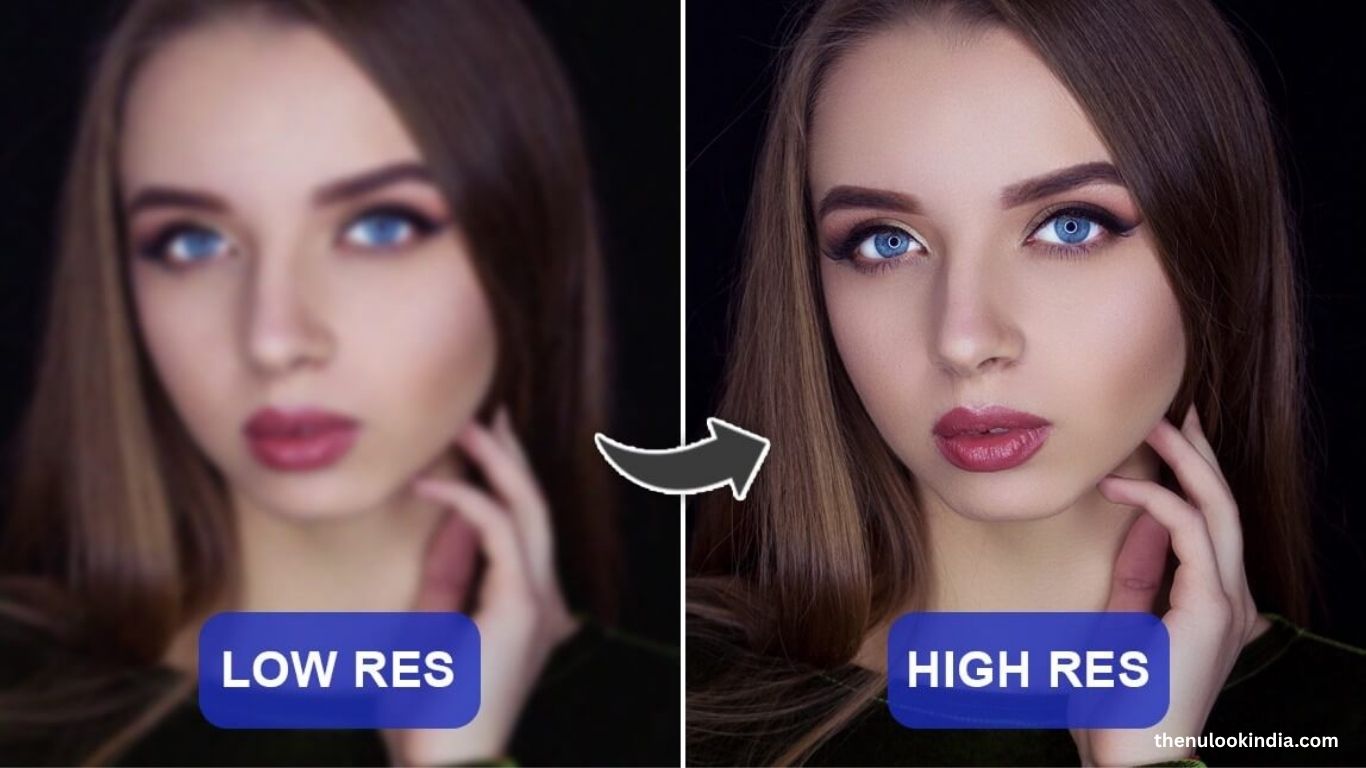
Enhancing image resolution transforms blurry or pixelated photos into crisp, high-quality visuals. Whether for professional work, personal use, or social media, improving image clarity is now simple with modern AI tools. This guide explains quick, effective ways to boost image resolution using accessible methods.
Why Improve Image Resolution?
High-resolution images are vital for:
- Professional projects: Sharp visuals enhance websites, portfolios, and marketing designs.
- Printing: Clear images look better on posters, flyers, and photo prints.
- Social media: Crisp posts attract more attention.
- E-commerce: Detailed product images build trust and drive sales.
Read more: 10 Free Body Editing Apps to Edit Body in Photos with AI
Low-resolution visuals often appear pixelated and unappealing, but with the right tools, you can enhance quality effortlessly.
How to Increase Image Resolution
Pick the Right Tool
Select a tool that fits your needs:
- Online editors: Platforms like Let’s Enhance, Pixlr, and Fotor offer quick and easy upgrades.
- Professional software: Adobe Photoshop and GIMP provide detailed editing control.
- AI-powered apps: Tools such as Topaz Gigapixel AI and Remini use advanced AI to upscale images with exceptional clarity.
- Beginners will find online tools simple and fast, while advanced users can achieve superior results with professional or AI-based solutions.
Upload Your Image
After selecting a tool, open the platform and upload your low-resolution image. Use a common format like JPEG or PNG for compatibility. Most tools offer simple drag-and-drop uploads, making the process fast and effortless.
Adjust Resolution Settings
Each tool has different enhancement options:
Online tools: Choose “Upscale” or “Enhance.” Some auto-adjust resolution, while others let you set a 2x or 4x increase.
Software (e.g., Photoshop): Go to Image > Image Size, uncheck “Resample,” and set your new dimensions. Use “Preserve Details” for optimal clarity.
AI apps: Tools like Topaz Gigapixel AI or Remini automatically analyze and sharpen images for lifelike results.
Always preview the image before saving to maintain sharpness and avoid distortion.
Enhance Details (Optional)
- Fine-tune your photo for a professional finish:
- Adjust brightness, contrast, or sharpness.
- Apply noise reduction to smooth older or grainy images.
- Use AI enhancement features to refine textures, faces, or backgrounds.
Avoid over-editing to keep your image natural and realistic.
Save and Export
- Once the enhancement looks right:
- Save in PNG or TIFF for print, or JPEG for web use.
- Use 300 DPI for print or 72 DPI for online images.
- Review your final file to confirm sharpness and detail.
Tips for Best Results
- Start with the highest-quality original possible.
- Avoid excessive upscaling—it can cause blurriness.
- Use AI tools for photos with fine details like faces or landscapes.
- Try multiple tools to see which gives the best outcome.
Common Mistakes to Avoid
- Ignoring file size: Large images slow websites. Compress with TinyPNG or similar tools.
- Using poor sources: Extremely blurry photos won’t upscale well.
- Skipping previews: Always review before saving to prevent low-quality results.
Frequently Asked Questions
Can I increase image resolution without losing quality?
Yes. AI-powered tools like Topaz Gigapixel AI and Remini upscale images while preserving or even enhancing details, minimizing quality loss.
Which image format is best for saving enhanced photos?
Use PNG or TIFF for printing due to their lossless quality, and JPEG for web uploads where smaller file sizes are needed.
How much can I increase an image’s resolution?
Most tools allow 2x to 4x upscaling without visible distortion. Beyond that, quality may decrease depending on the original image.
Are free online tools effective for resolution enhancement?
Yes. Platforms like Let’s Enhance, Pixlr, and Fotor provide great results for casual users, though premium or AI-based tools often deliver better clarity.
What’s the ideal resolution for printing vs. web use?
Use 300 DPI for print materials to ensure sharpness and 72 DPI for web images to balance quality and loading speed.
Conclusion
Resolution is now simple and accessible, thanks to modern AI and online tools. Whether you’re refining photos for print, social media, or professional use, following the right steps ensures clear, detailed, and visually appealing results. Choose reliable tools, preview your edits, and save in the correct format to maintain quality. With the right approach, even low-resolution images can look sharp, vibrant, and ready for any purpose.
