

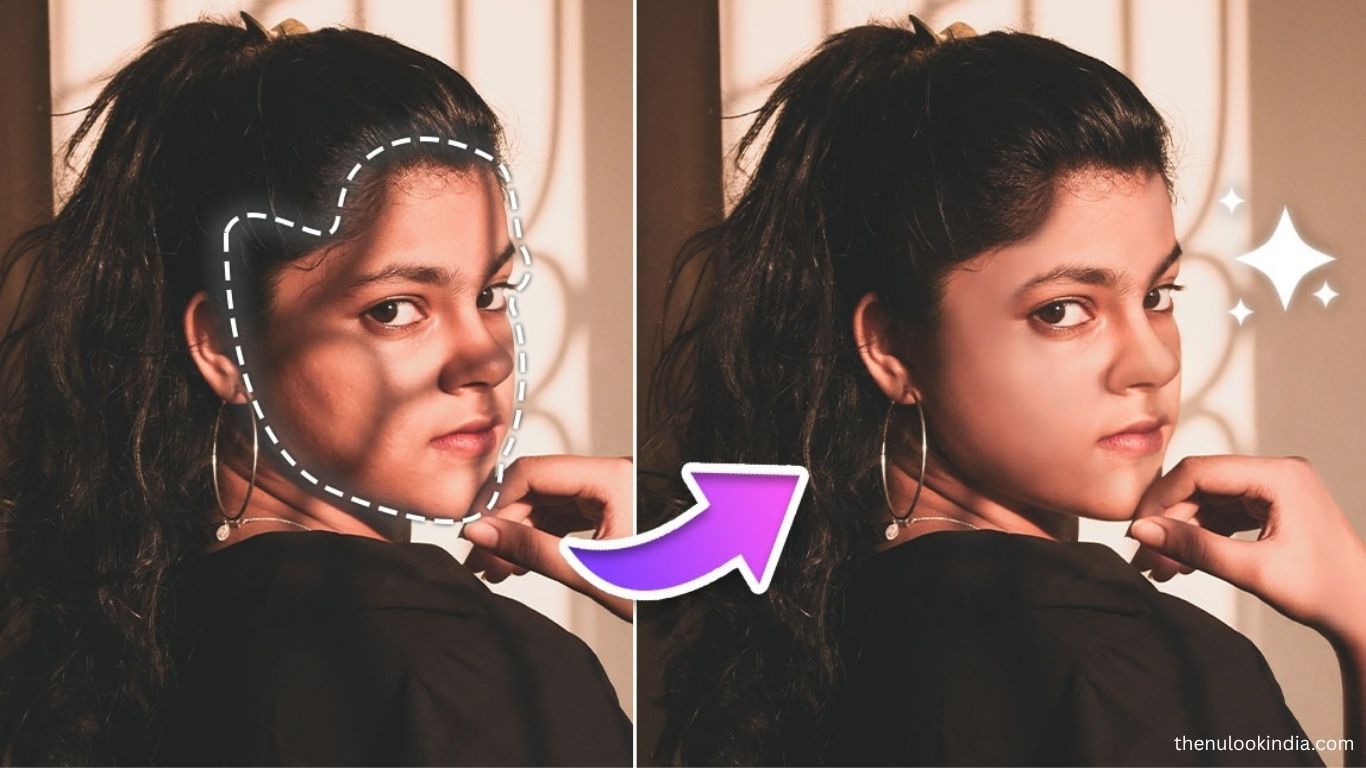
Enhancing images by removing shadows makes photos cleaner and more professional. Whether editing product shots, portraits, or casual photos, a variety of apps and online tools can help create shadow-free results. This guide highlights easy and advanced methods for removing shadows using both mobile apps and web platforms.
Why Remove Shadows From Photos?
Shadows can distract from the main subject, create uneven lighting, or make images look unpolished. Key scenarios include:
- Product Photography: Shadows may hide details, lowering appeal in e-commerce.
- Portraits: Shadows on faces can distort features or look unflattering.
- Social Media: Shadow-free images tend to attract more engagement.
- Graphic Design: Clean images integrate seamlessly into designs or composites.
With AI-powered editing tools, removing shadows has never been easier. This article covers both app-based and online solutions for beginners and pros alike.
Method 1: Removing Shadows Using Mobile Apps
Mobile apps make shadow removal quick and convenient. Two popular options are Adobe Photoshop Express and Snapseed. Here’s how to use Photoshop Express effectively:
Adobe Photoshop Express (iOS/Android)
A user-friendly app with powerful tools, including shadow removal. Free with optional in-app upgrades.
Steps to Remove Shadows:
- Download & Open: Install from the App Store or Google Play, then open your photo.
- Select Healing Tool: Tap the “Healing” or “Spot Heal” tool (band-aid icon).
- Brush the Shadow: Zoom in and brush over shadowed areas. The app fills in using surrounding pixels.
- Adjust Lighting: Fine-tune brightness, contrast, and highlights for a natural look.
- Save & Share: Export the edited image to your device or share directly.
Tips:
- Use a stylus for precise edits.
- Adjust “Exposure” and “Shadows” sliders for subtle improvements.
- Upgrade to premium for selective editing and advanced features.
Snapseed (iOS/Android)
Snapseed, by Google, is a free app with powerful editing tools for removing shadows and blemishes.
Steps to Remove Shadows:
- Install & Open: Download Snapseed from the App Store or Google Play, then open your photo.
- Use Healing Tool: Go to Tools > Healing, pinch to zoom, and brush over shadowed areas.
- Adjust Lighting: Navigate to Tools > Tune Image to tweak brightness, shadows, and highlights for a natural result.
- Export: Tap Export to save or share your edited image.
Tips:
- Use the Selective tool to refine specific areas.
- The Undo feature lets you correct mistakes easily.
- Save edits non-destructively to revisit adjustments later.
Method 2: Removing Shadows Using Online Tools
Online tools are perfect for users who prefer editing on a computer or want a quick, app-free solution. Many platforms leverage AI to simplify shadow removal.
Fotor (Web-Based)
Fotor is a versatile online editor with an AI-powered object removal tool, ideal for shadows. Free with optional premium features.
Steps to Remove Shadows:
- Visit & Upload: Go to fotor.com
, click Edit a Photo, and upload your image. - Use Object Removal: Navigate to Beauty or Remove Object and brush over the shadow. AI fills in matching pixels.
- Refine: Adjust brightness or contrast to blend the edited area naturally.
- Download: Save your photo as JPEG, PNG, or other formats.
Tips:
- Use a small, precise brush for edges and detailed areas.
- Complex shadows may require multiple passes.
- Sign up for a free account to unlock extra tools.
Pixlr (Web-Based)
Pixlr is a user-friendly online editor with a Clone Stamp tool ideal for shadow removal. It offers free and premium versions.
Steps to Remove Shadows:
- Access & Upload: Go to pixlr.com
and select Pixlr E. Click Open Image to upload your photo. - Select Clone Stamp: Set the source near the shadow to copy clean pixels.
- Paint Over Shadow: Brush over the shadow to replace it with cloned areas.
- Smooth Edits: Use Blur or Smudge tools to blend naturally.
- Save: Download the edited image or save to your Pixlr account.
Tips:
- Adjust brush opacity for smooth transitions.
- Use layers for non-destructive editing.
- The free version works well for basic shadow removal.
Advanced Tips for Shadow Removal
- Use Layers: Work on separate layers in apps like Photoshop Express or online editors like Pixlr to preserve the original image.
- Match Lighting: Adjust brightness, contrast, and highlights after shadow removal for a natural blend.
- Leverage AI Tools: Apps like Remove.bg and PhotoRoom can automate shadow removal, ideal for product photos.
- Manual Precision: For complex images, tools like the clone stamp or healing brush provide greater control than AI.
- Be Patient: Intricate backgrounds take time—careful edits prevent noticeable errors.
Best Practices to Avoid Shadows in Photos
- Lighting Setup: Use diffused light or softboxes to minimize harsh shadows.
- Subject Positioning: Keep subjects away from direct light sources.
- Background Choice: Plain or light-colored backgrounds make shadow removal easier later.
Frequently Asked Questions
Why should I remove shadows from photos?
Shadows can distract from the subject, create uneven lighting, or make images look unpolished, reducing visual appeal.
Which apps are best for removing shadows on mobile?
Adobe Photoshop Express and Snapseed are top choices for both beginners and advanced users.
Can I remove shadows without installing an app?
Yes, web-based tools like Fotor and Pixlr allow shadow removal directly from your browser.
Are AI tools reliable for shadow removal?
Modern AI tools like Remove.bg and PhotoRoom can quickly remove shadows, especially for product photography, though manual adjustments may still be needed for complex images.
How can I avoid shadows in future photos?
Use diffused lighting, position subjects away from direct light, and choose plain or light-colored backgrounds.
Is it better to use manual or AI tools?
For simple shadows, AI works fast. For intricate images, manual tools like clone stamp or healing brush offer more control.
Do shadow removal edits affect image quality?
When done carefully with layers and proper blending, edits maintain high image quality without noticeable changes.
Conclusion
Removing shadows enhances photo quality, making images look clean, professional, and visually appealing. Whether using mobile apps like Adobe Photoshop Express and Snapseed or web-based tools like Fotor and Pixlr, both beginners and advanced users can achieve impressive results. Combining AI tools with manual editing ensures precision, while proper lighting and subject positioning help prevent shadows in future photos. With the tips and techniques outlined in this guide, you can create flawless, shadow-free images for social media, e-commerce, or personal projects.
